
How to analyse a Scrabble board from a photo
Scrabboard Solver ·
A Scrabble photo solver starts with the position on your board, rather than a list of letters alone. Scrabboard Solver recognises a board image on Android and helps you compare the moves available from that position.
Prepare a clear photo of the whole board
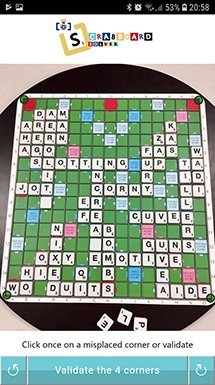
Keep all four corners in the picture so the application can locate the board. Take the photo with even lighting and avoid reflections on glossy tiles. Move closer if letters are difficult to read, while keeping the complete board visible.
For a physical game, check that you have entered or verified the rack you want to analyse. The board image and rack together determine which words can be played.
Import, configure and check your position
The dictionary decides which words are allowed. The board type determines the layout and bonus squares. Both should match the game you are analysing.
- Open Scrabboard Solver and take a photo, or select an existing image from your gallery.
- Choose the matching board type and dictionary.
- Check the board corners, recognised letters and rack. Correct any mismatch and identify blank tiles.
- Ask for solutions and compare their scores on the virtual board.
Use the solution to understand your options
Start by comparing your own move with the highest-scoring suggestion. Look at how the new word uses existing letters and bonus squares. You can also explore other playable words rather than choosing the first result.
If you want to practise, use hints before revealing the full solution. A clue about the score, word length or first letter can help you find the move yourself.
Improve a difficult recognition result
When a letter is incorrect, adjust it manually and analyse the corrected position. If several letters are unclear, take another photo with less glare, better focus or more even lighting.
If the recognised board looks right but a word seems unexpected, check the selected dictionary and rack, including any blank tiles. A word accepted in one dictionary may not be accepted in another.
Image recognition runs locally on your Android device. You can inspect and correct the recognised board before using any suggested move.
Free to download. Contains ads and in-app purchases.